
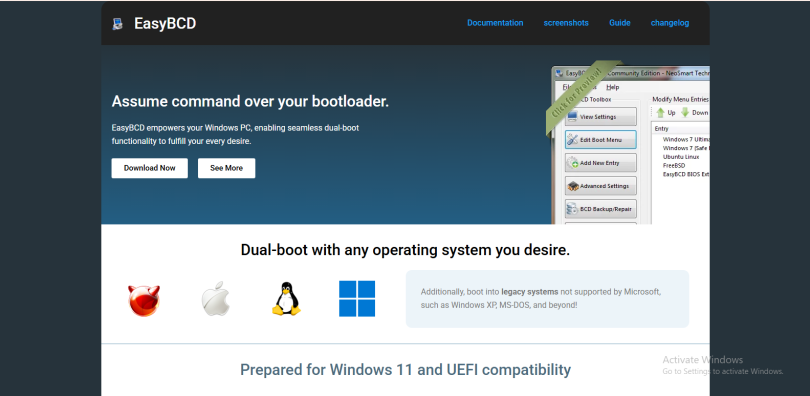

Boot errors are among the most frustrating problems Windows users face. A computer that refuses to start properly can interrupt work, gaming, studies, or important daily tasks. Many users search for simple tools that can repair startup problems without reinstalling Windows. One popular utility often mentioned in this situation is EasyBCD.
EasyBCD is a lightweight boot management tool designed to help users control and repair the Windows bootloader. It is widely used for fixing startup problems, managing dual-boot systems, and restoring damaged boot configurations. But the real question is whether EasyBCD can actually fix boot errors effectively. The answer depends on the type of boot problem you are facing.
Understanding Boot Errors
A boot error happens when the computer cannot properly load the operating system during startup. These issues can appear for many reasons, including corrupted boot files, failed Windows updates, damaged partitions, incorrect boot settings, or problems caused by installing another operating system.
Some common boot error messages include “BOOTMGR is missing,” “Operating System Not Found,” “BCD missing or corrupted,” and endless restart loops. In many cases, the issue is not with the entire operating system but with the boot configuration itself.
The bootloader acts as the bridge between your hardware and the operating system. If this bridge becomes damaged or misconfigured, Windows cannot start correctly. This is where EasyBCD becomes useful.
What Is EasyBCD?
EasyBCD is a bootloader configuration tool developed for Windows systems. It provides a graphical interface that allows users to edit and repair the Boot Configuration Data, commonly known as BCD.
The BCD store contains important startup information used by modern Windows operating systems. Normally, modifying boot settings manually requires complex command-line tools. EasyBCD simplifies this process through a user-friendly interface.
The software is especially popular among users who run multiple operating systems such as Windows and Linux on the same computer. However, it is also frequently used to repair boot problems after crashes, failed installations, or accidental configuration changes.
How EasyBCD Helps Fix Boot Errors
EasyBCD can repair several types of boot-related issues by rebuilding or correcting the boot configuration. One of its main features is the ability to recreate damaged boot entries. If Windows fails to start because the BCD file is corrupted or missing, EasyBCD can help restore the necessary startup information.
The software also allows users to repair the Master Boot Record and rebuild boot files. This can resolve problems caused by malware, disk errors, or interrupted updates. In many situations, users can avoid a complete Windows reinstall by repairing the bootloader instead.
Another advantage is that EasyBCD helps fix dual-boot conflicts. Installing another operating system can sometimes overwrite the Windows bootloader, making Windows inaccessible. EasyBCD allows users to restore proper boot menu functionality and regain access to their systems.
The tool can also help when cloned drives or migrated SSDs fail to boot correctly. Sometimes the new drive contains Windows files but lacks proper boot configuration. EasyBCD can recreate the necessary entries so the system becomes bootable again.
Situations Where EasyBCD Works Best
EasyBCD is most effective when the problem is related to boot configuration rather than severe hardware damage. If the hard drive is healthy and Windows files are mostly intact, the software has a good chance of solving the issue.
Users often successfully repair startup problems after installing a second operating system. Incorrect partition settings and overwritten boot sectors are common in dual-boot environments, and EasyBCD handles these situations well.
The tool is also useful when Windows updates damage startup settings. Occasionally, updates modify or corrupt boot files, leading to failed startups. Rebuilding the boot configuration with EasyBCD can restore normal operation.
Many users also rely on the software after accidental deletion of system partitions or changes made through disk management tools. As long as the Windows installation still exists, EasyBCD may help reconnect the bootloader to the operating system.
Limitations of EasyBCD
Although EasyBCD is powerful, it cannot solve every boot problem. Some issues go beyond boot configuration and involve damaged hardware or corrupted operating system files.
If the hard drive has physical failure, EasyBCD will not repair the hardware itself. In such cases, the system may continue failing even after rebuilding the bootloader. Similarly, if important Windows system files are heavily corrupted, users may need advanced recovery tools or a full reinstall.
EasyBCD also cannot fix problems caused by defective RAM, motherboard issues, or severe malware infections that damage critical system areas. It is important to understand that the software focuses mainly on boot management rather than complete system repair.
Another limitation is that inexperienced users can accidentally create incorrect boot entries. While the interface is simpler than command-line tools, changing boot settings without understanding them can sometimes make the situation worse.
Is EasyBCD Safe to Use?
For most users, EasyBCD is considered safe when downloaded from the official source and used carefully. The software has been available for many years and is trusted by many Windows users and technicians.
Before making changes, it is always recommended to back up important data and create a recovery drive. Boot configuration changes affect the startup process directly, so mistakes can temporarily prevent Windows from loading.
Fortunately, EasyBCD includes backup and restore options for the BCD store. This feature allows users to save the current configuration before making modifications. If something goes wrong, the previous settings can often be restored easily.
EasyBCD Compared to Windows Startup Repair
Windows includes its own Startup Repair feature, which automatically attempts to fix boot problems. In simple cases, Startup Repair may solve the issue without requiring additional software.
However, EasyBCD provides greater control over the boot process. Windows Startup Repair works automatically and may fail without explaining the problem. EasyBCD allows users to manually inspect and modify boot entries, making it more flexible for advanced troubleshooting.
For dual-boot systems, EasyBCD is often the preferred choice because it supports multiple operating systems and custom boot configurations. Windows Startup Repair sometimes removes non-Windows boot entries, while EasyBCD helps maintain them.
Should You Use EasyBCD for Boot Problems?
EasyBCD can be an excellent solution for many boot-related issues, especially when the problem involves corrupted boot entries, missing BCD files, or broken dual-boot setups. Its simple interface makes advanced boot management more accessible to everyday users.
The software is particularly useful for users who want to repair startup problems without reinstalling Windows. In many cases, rebuilding the bootloader can restore the system within minutes.
However, users should remember that EasyBCD is not a universal repair tool. Hardware failures and deeply corrupted operating systems may require more advanced recovery methods. Understanding the actual cause of the boot problem is important before relying on any repair software.
Conclusion
EasyBCD can absolutely fix many common boot errors, especially those related to corrupted boot configurations and startup settings. It provides an easy way to repair bootloaders, rebuild BCD entries, and restore access to Windows systems.
For users dealing with dual-boot conflicts, missing boot files, or startup loops caused by configuration issues, EasyBCD is often a reliable and effective solution. While it cannot repair hardware failures or severe operating system corruption, it remains one of the most useful tools for managing and fixing Windows boot problems.